
By DTG
Short answer
Sign printers print their clients’ company colors, and they are often asked to match specific Pantone colors in the file. A calibrated monitor lets you preview how those colors will actually print on banner, vinyl or wall covering, spot the ones the printer cannot reach, and fix them before you burn media. It saves time, material and reprints, especially with demanding customers.
Have a question about color-accurate monitors? Talk to DTG or call 813.889.0660 (toll-free 800.681.0024).
Our most common in-bound tech support call is “why don’t my prints match my monitor?” “The customer approved it on screen, and the banner came out a different color.” In sign work the cost of that sentence is larger than almost anywhere, because the mistake is larger. This guide explains why a color-accurate monitor matters and what it lets you do that a typical design screen does not.
Why does color accuracy matter so much for signs?
Sign printers are almost always printing company colors, including the colors of their clients’ logos. They are also regularly asked to match the Pantone colors specified in a file. A client may forgive a slightly different photo. They will rarely forgive a logo color that looks wrong.
Do sign shops usually have calibrated monitors?
Most do not. The reason is simple: they want to save money, and a color-accurate monitor costs more than an ordinary one. We try to educate them that it works the other way. A calibrated monitor helps you save money on the demanding customer who wants the color right, because you can preview on your screen how that customer’s colors will actually print on banner, vinyl or wall covering material.
What goes wrong with an uncalibrated monitor?
Sign shops make color decisions on screen all day. If the screen is wrong, you pay in material:
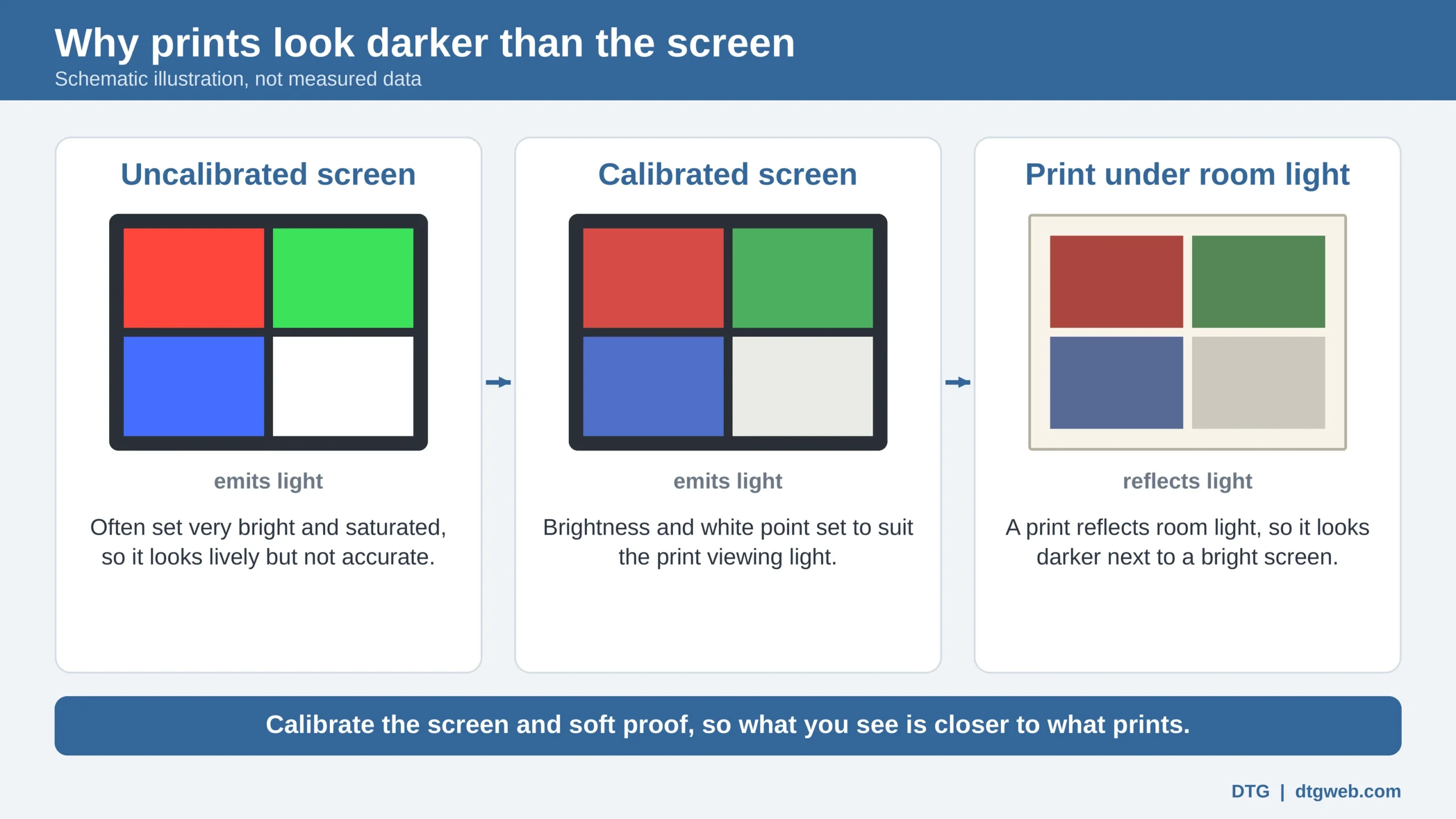
- The print does not match the on-screen proof. The customer approved one thing and received another.
- Media is wasted. Vinyl, banner stock, rigid substrates and ink go into every test and reprint, and large formats multiply the loss.
- Remakes. A color problem found only after printing and laminating means starting over.
- Disputes. When a logo color looks different from what was approved, the shop gets the blame.
- Inconsistency between desks. Two designers with two differently set screens make different choices for the same job.
What happens when a Pantone color is outside the printer’s gamut?
Many sign printers can only print a limited range of color, and that range can be even narrower on some media. So just because a file calls for a defined Pantone color, it does not mean your printer can print it on that material. The color may sit outside the gamut of the printer and media combination.
If you soft proof the file on a calibrated screen, using the profile for that printer and media, you can see how differently the out-of-gamut color will print. That gives you two options:
- Show the customer. Put the difference in front of them before anything is printed.
- Massage the color. Adjust it to get the closest version of the original the printer can produce.
Either way, catch the color problem at the screen, before anything is printed.
How do I calibrate and profile every design station?
Calibration brings a screen to a known, repeatable standard: white point, brightness and tone response. Profiling records how that screen displays color so your software can use the information. Do both, and repeat them on a regular schedule. When every station in the shop is calibrated to the same target, the design team looks at one color, and a conversation about color becomes a short one.
See our calibration support guide (or our newer Eizo ColorEdge photo and fine-art print-proofing guide) for how it is done with Eizo’s ColorNavigator 7.
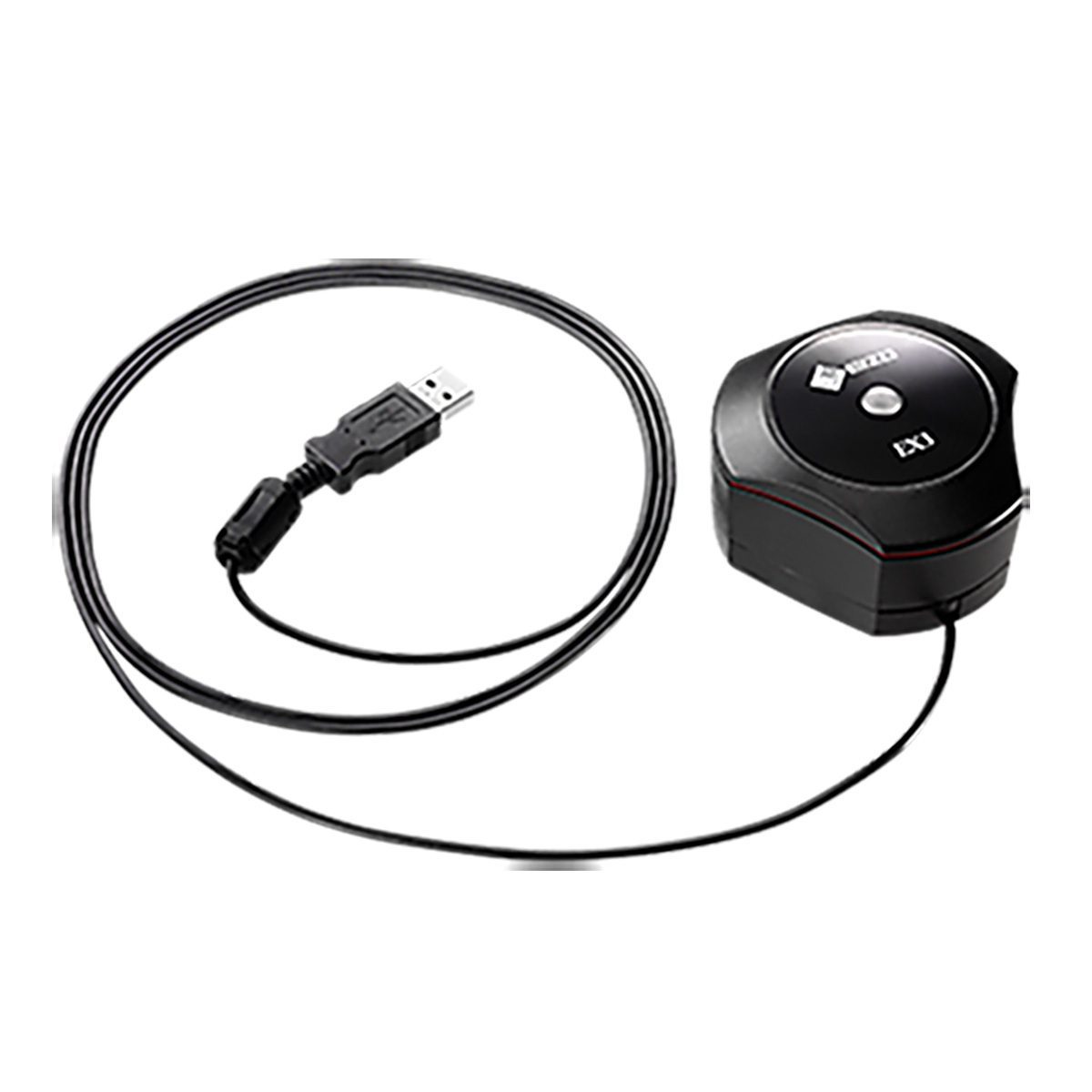
Where the calibrator lives. On an Eizo ColorEdge CG model, the calibrator is built in: a sensor in the front bezel swings out in front of the screen when it is needed, so there is no separate device to hang on the monitor, and it can recalibrate on a schedule you set. A ColorEdge CS model uses an external Eizo sensor that you attach to the screen when you calibrate, which we suggest doing every two to four weeks. Both do direct hardware calibration.
Does the monitor spec sheet matter?
Contrast ratio, dot pitch and peak brightness are the numbers monitors are sold on. They do not tell you whether a logo’s red is actually red. Look at how the monitor is calibrated. With direct hardware calibration, the corrections go into the monitor’s own look-up table (LUT) rather than through the video card. That tends to give smoother gradients, which matters for the soft blends and shadows on a banner or wrap. Eizo lists a 16-bit LUT on the CG2700S, CG2700X, CG2400S, CS2400S, CS2731 and CS2740. Read hardware vs software calibration for the full picture.
How do I soft proof for the actual media?
A wide-format printer, its RIP, the ink set and the material all affect color. Vinyl, fabric and coated banner stock can each print the same file differently. A profile for each printer and media combination describes that behavior, and soft proofing uses it to preview the result on a calibrated screen. In Photoshop, the steps are:
- Calibrate and profile the monitor first. Soft proofing on an uncalibrated screen only gives you a confident wrong answer.
- Make sure you have an ICC profile for the exact printer, paper or media, and ink you will use.
- Open the image in Photoshop and choose View > Proof Setup > Custom.
- In the dialog that opens, pick your printer and media profile as the device to simulate, and choose the rendering intent you plan to print with.
- Click OK and watch the image shift. That shift is the print’s likely color and tone range, shown on your screen. Toggle View > Proof Colors to flip between the proof and the original.
- Make your corrections while the proof is on, then print with the same rendering intent you proofed with.
Check a logo or gradient against the profile for the real material before you run the job. If a bright color is out of range for that material, you will know first. DTG offers a custom ICC printer profiling service, and our soft-proofing support guide explains the setup. Menu names can vary between Photoshop versions, and other design programs have their own proofing controls.
What about wide gamut and the shop floor?
A wide-gamut monitor shows more of what a design may call for. Eizo lists 99% Adobe RGB coverage for CG and CS monitors in our guide, and 98% DCI-P3 on models such as the CG2700S and CG2400S. The monitor shows what the file contains, and the soft proof shows what the printer and media can reproduce.
A sign shop is not a quiet studio. Windows, bright overhead lights and the production floor all reach the screen. A hood cuts that stray light. The CG models in our guide include one, and it is optional on CS models. We carry the Eizo CH2710 hood for 27-inch ColorEdge monitors. Set the screen’s white point and brightness to match your proofing light so the screen does not outshine a printed sample. Many print workflows land near 80 to 120 cd/m², though the right value depends on the room.
CG or CS for a sign shop?
Our rule of thumb: if you are someone who has to have the best, choose the CG. But the CS is about 99% of the CG for display accuracy, consistency and color gamut, so it is a very sound monitor for color work. The CG adds two conveniences. One is the automatic calibrator built in, so no one has to hang an external sensor on the screen. The other is a near-instant warm-up: in our experience a CG shows accurate color and brightness within a couple of minutes, while a CS takes around 15 minutes.
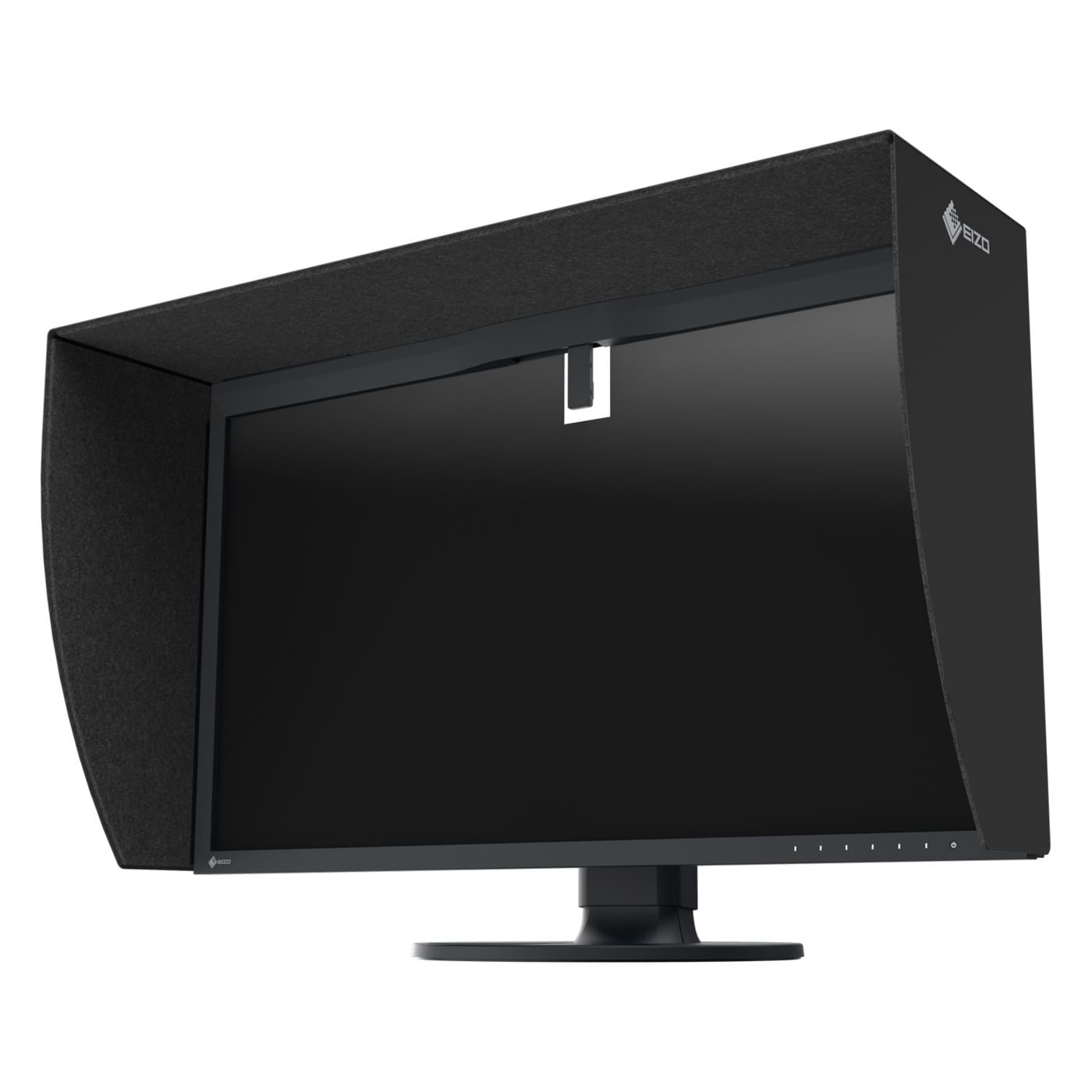
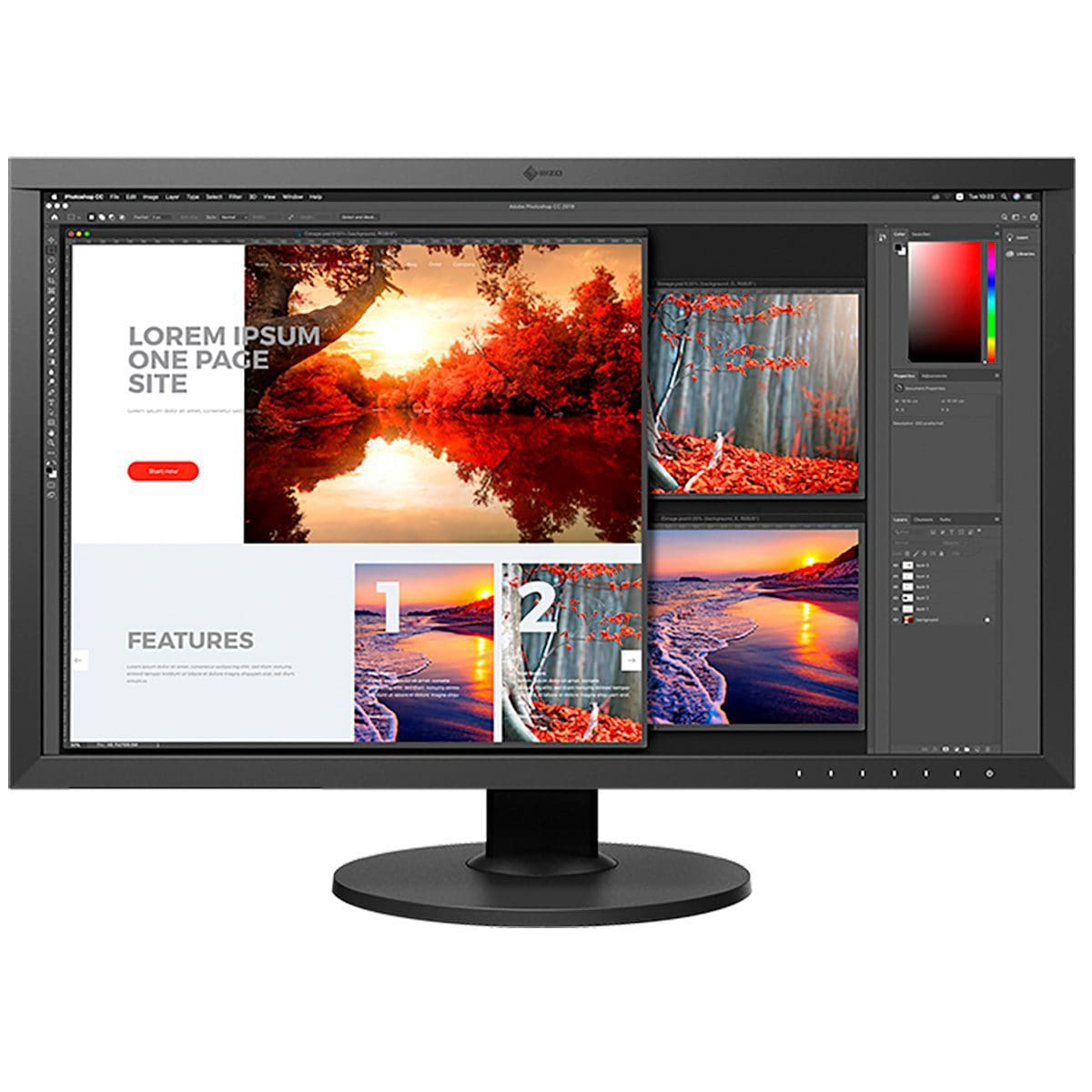
- A CG model such as the CG2700S or CG2400S has the sensor in the bezel and includes a hood. It suits busy shops where no one wants to stop and set up a separate sensor.
- A CS model such as the CS2731 bundle uses an external Eizo sensor that you run when needed. The hood is optional.
Our CG vs CS guide lays out the differences.
Can I just calibrate the monitor I already have?
Yes. Calibrating and profiling the monitor you already own is much better than leaving it uncalibrated, but it is not the same as an Eizo ColorEdge. A Calibrite calibrator measures your screen and builds a profile, and the correction is applied through the computer’s video card. What you see on screen is changed and brought in line with the calibration target, so colors are far more predictable. It is just not as accurate or as clean as hardware calibration, which writes the correction into the monitor’s own memory (its look-up table) and generally keeps tones smoother and color steadier. That is how Eizo ColorEdge monitors work. A calibrator improves the consistency and quality of what a monitor shows, but it can only do so much: if the monitor itself, such as a laptop screen, is lower quality, there is a limit to what calibration can fix. A Calibrite will not turn an average monitor into an Eizo ColorEdge.
Here is our honest ranking: no calibration, then a Calibrite on your existing monitor, then Eizo hardware calibration (a CG with the sensor built in, or a CS with an external Eizo sensor). DTG sells the Calibrite Display Pro HL and the entry-level Display 123; see all Calibrite calibrators. To compare the Eizo route, read our CG vs CS guide. Not sure which fits your screen? Ask DTG.
Questions we hear
Why does the printed banner look different from my screen?
Common causes are an uncalibrated screen, no profile for the media, or a color outside what the printer and material can reproduce. Calibrate first, then profile the printer and material and soft proof.
Can the printer always match a Pantone color?
No. A defined Pantone color can fall outside the gamut of the printer and the media. A soft proof shows you the difference so you can show the customer or adjust the color to the closest print.
Is a budget monitor good enough for a sign shop?
If your customers only want pleasing color, it may be. If they are demanding about their brand colors, spend a bit more on a monitor you can calibrate and profile. It pays for itself in saved time and materials.
Can one profile cover all my media?
Usually not. Each media type behaves differently, so each needs its own profile.
Can several workstations match?
Yes. If every monitor is calibrated to the same target, the team sees the same color.
Talk to DTG
If you run a sign shop and want fewer reprints, DTG is an authorized Eizo reseller in Tampa, FL. Tell us what you print and we will help you choose a monitor, a sensor and a workflow that fit your work. A DTG color specialist follows up personally.
Call us: 813.889.0660 or toll-free 800.681.0024.
You can also contact us online or browse the Eizo ColorEdge monitors we carry.
About the author: The author has been providing color management and printing solutions to the fine art reproduction, digital photography, sign making, proofing and digital textile markets since 1993, and has been writing, training and teaching on the subject for various publications and in many different forums over the years.
Keep reading
- Why doesn’t my print match my screen? (start here)
- Color-accurate monitors for fine art reproduction
- Color-accurate monitors for photo printing
- Color-accurate monitors for brand and commercial printing
- Eizo ColorEdge CG vs CS: which series to buy
- Match your Eizo monitor to your printer: soft proofing
sign-printing-color-accurate-monitor


