
By DTG
Short answer
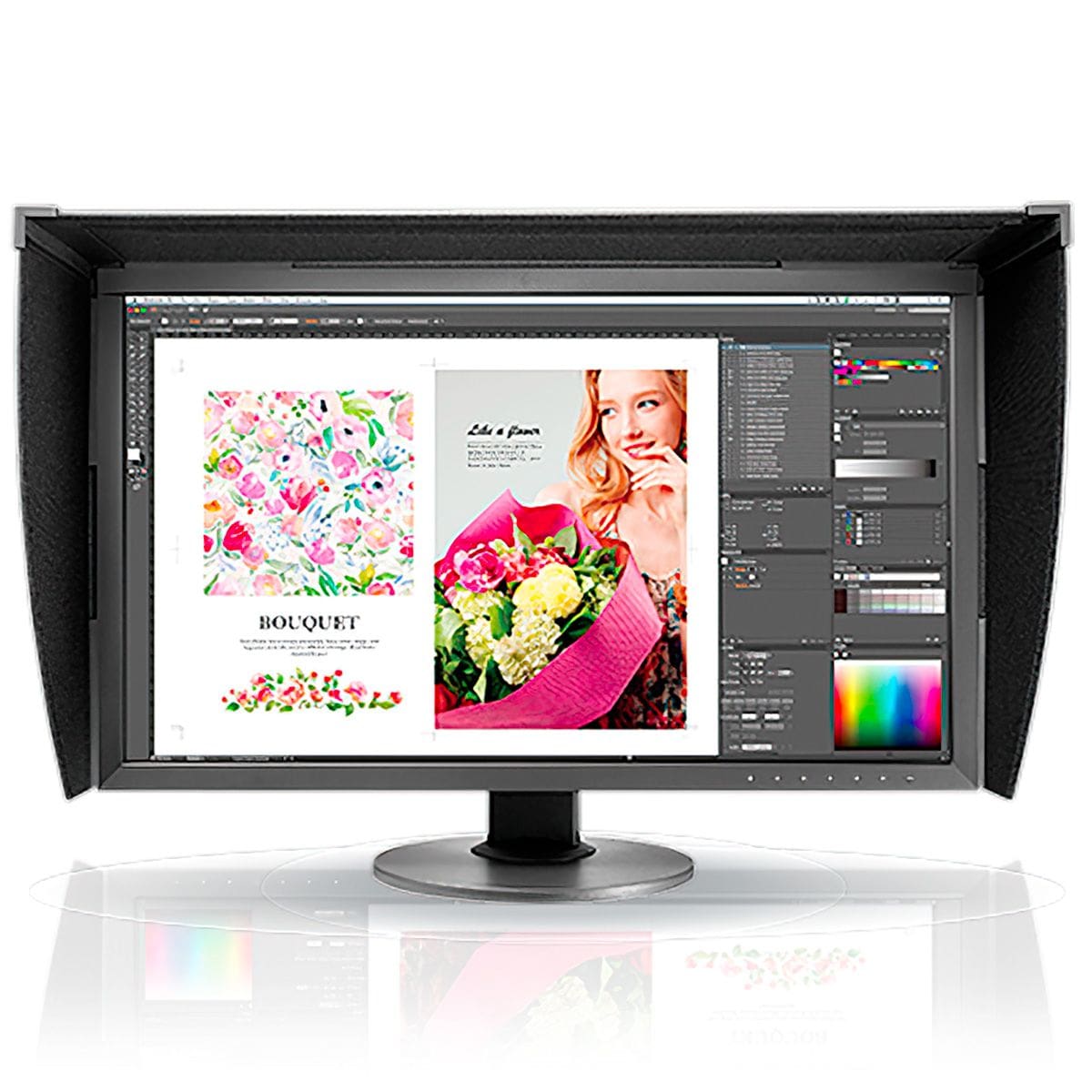
A scan or photo of a painting never captures it perfectly, so you color-correct the file, and you can only do that well on a monitor that shows accurate color. Pair a calibrated, wide-gamut monitor with a color-managed workflow and soft proofing, and you can trust that the corrections you make on screen carry through to the printer. The payoff is less time correcting images, a correct print sooner, and less canvas, paper and ink lost to reprints.
Have a question about color-accurate monitors? Talk to DTG or call 813.889.0660 (toll-free 800.681.0024).
Our most common in-bound tech support call is “why don’t my prints match my monitor?” Artists, giclee shops, galleries and publishers all start from the same brief: make the print look like the original. That is the hardest test in color management, because the original is sitting right there to be compared with. This guide covers who does this work, what goes wrong between capture and print, and how a color-accurate monitor fits in.
Who reproduces fine art, and what does each care about?
We see five groups. They share a printer and a monitor, but they do not share priorities.
- Artists care most about matching their original paintings, every color of them.
- Giclee shops care about quality and accuracy too, and also about efficiency and cost.
- Galleries are similar to giclee shops.
- Museums are all about accuracy, and money is usually no object.
- Art publishers, who own the rights to the art and to printing it, care most about the lowest cost to produce. They will pay for hardware up front, but they have to minimize cost and waste.
A calibrated, accurate monitor serves all five. For some it means fidelity, for others it means fewer wasted sheets.
What does a typical canvas reproduction go wrong on?
Here is a common scenario we see, told as a composite rather than one particular customer. An artist brings in an original painting and asks for a canvas print that matches the colors. They are working on a monitor or laptop straight from a big box store, with default settings and no calibration. Default settings are never right for matching a print. The screen is brighter and more saturated than the printer can reproduce, so the first print always comes out darker and more muted than expected.
The artist then starts correcting the file on that same screen. Our picture of it is painting a room with the lights turned off: you cannot judge what you are doing. You turn the lights on by running the print, and the colors are wrong. Another round of correcting, another print, more canvas and ink gone.
The fix starts with the screen, not the printer.
Why can’t I just trust the scan?
A digital capture or scan of a painting never captures it 100% accurately. Most of the time it takes a good amount of color correction in Photoshop to bring the file back to the original. To trust that work you need three things together:
- A monitor with accurate color and a wide gamut, wide enough to show the colors in the painting.
- A color-managed workflow, so the file, the monitor and the printer all speak the same color language.
- Soft proofing, so you see how the printer and media will render the file while you correct it.
With all three, what you see while you are correcting is what the printer will faithfully reproduce, as closely as the paper and ink allow.
Why fine art also punishes an uncalibrated screen
A fine art print has a physical original to be measured against. An uncalibrated screen gets in the way in several ways:
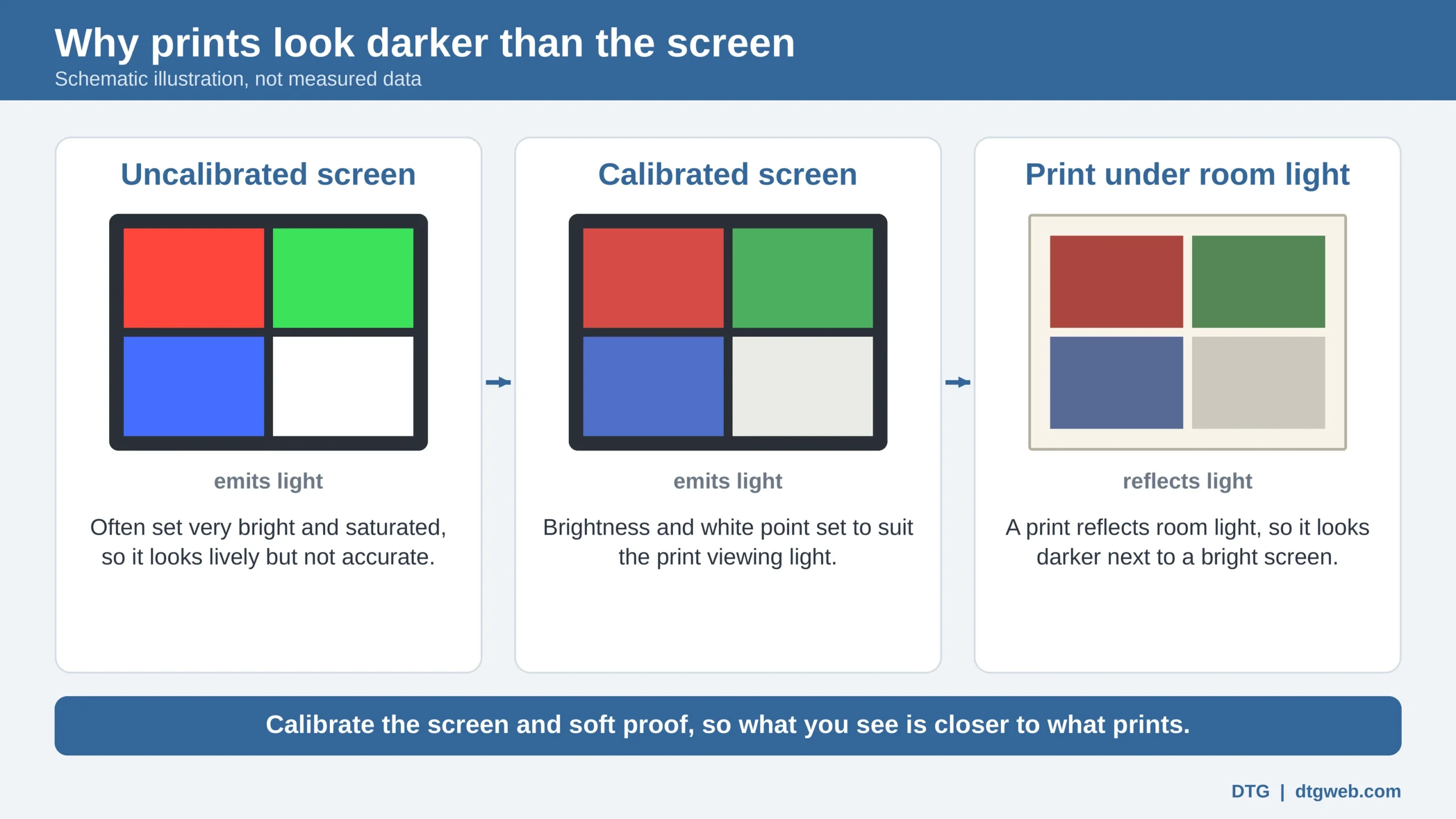
- The screen is brighter than the paper can ever be. You darken the file to compensate, and the print comes out heavy.
- The white point is off. A bluish or yellowish screen white changes how every color looks, and you correct for it without knowing.
- Subtle tones are lost. A watercolor wash or an oil glaze depends on fine gradations. A weak screen hides banding and crushed shadows.
- Media is wasted. Canvas, fine art paper and archival ink are worth saving. Every extra proof burns some.
- The artist sees a different screen than you. You are both arguing from different colors.
Calibrate, and profile too
People often use the two words as if they meant one thing. They are two jobs. Calibration brings the monitor to a known, repeatable standard: a chosen white point, brightness and tone response. Profiling then records how that calibrated monitor shows color, in an ICC profile that your editing software reads so it can display your files correctly on that screen. Skip the first and the second describes a moving target. Skip the second and your software is guessing.
Eizo’s ColorNavigator 7 handles both steps together. For more detail, see our calibration support guide (or our newer Eizo ColorEdge photo and fine-art print-proofing guide).
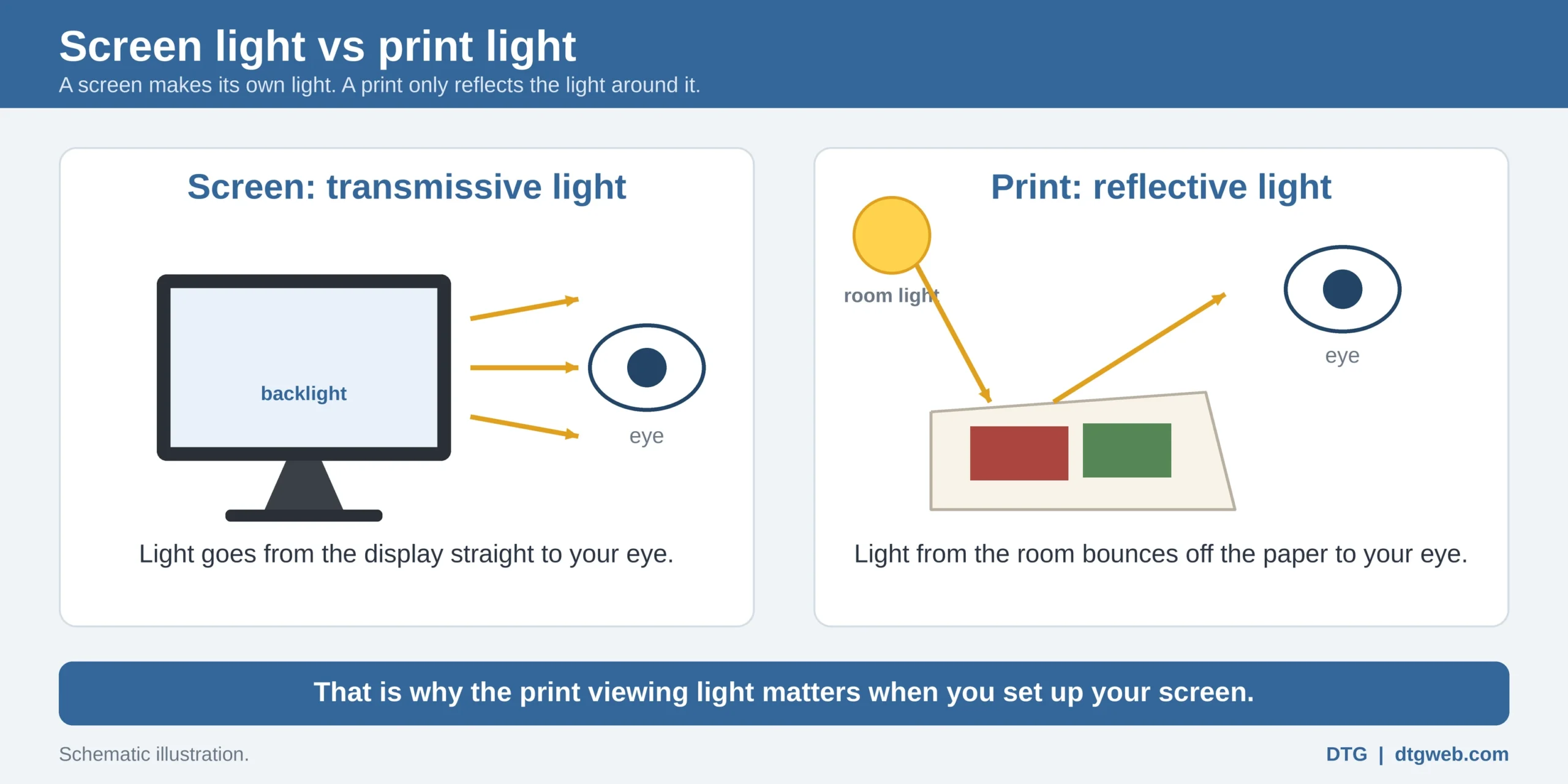
Where the calibrator lives. On an Eizo ColorEdge CG model, the calibrator is built in: a sensor in the front bezel swings out in front of the screen when it is needed, so there is no separate device to hang on the monitor, and it can recalibrate on a schedule you set. A ColorEdge CS model uses an external Eizo sensor that you attach to the screen when you calibrate, which we suggest doing every two to four weeks. Both do direct hardware calibration.
Why does calibrating inside the monitor matter?
When shoppers compare screens, they usually compare contrast ratio, dot pitch and peak brightness. For reproduction work, those figures tell you little about whether a color is right. Two other things matter more.
The first is how the monitor is calibrated. With direct hardware calibration, the sensor’s results are written into the monitor’s own look-up table (LUT), so the monitor’s electronics do the correcting. The alternative is to push corrections through the computer’s video card, which works but gives the monitor less to work with. Direct calibration generally yields smoother transitions between tones, which is exactly what a glaze or a soft gradient needs. Read hardware vs software calibration for the details.
The second is the precision of that table. A finer table gives smoother tonal steps after correction. Eizo lists a 16-bit LUT on the ColorEdge CG2700S, CG2700X, CG2400S, CS2400S, CS2731 and CS2740.
How should I set the monitor for my viewing booth?
The goal is for the screen and the print to look alike when you hold them in the same room. So calibrate the screen to the light you use for judging prints. If you inspect proofs in a daylight-style viewing booth, for example one at 5000K, choose a matching white point and a screen brightness that does not outshine the paper under that light. Many print workflows land somewhere around 80 to 120 cd/m², but treat that as a starting point and fine-tune by comparing a proof with the screen.
A shading hood stops room light from washing out the glass. The CG models in our guide include one, and it is optional on CS models. We carry the Eizo CH2710 hood for 27-inch ColorEdge monitors.
How do I soft proof a reproduction in Photoshop?
Soft proofing uses the ICC profile that describes your printer and paper to preview the print on a calibrated screen. It is the step that saves the most media. A typical sequence in Photoshop looks like this:
- Calibrate and profile the monitor first. Soft proofing on an uncalibrated screen only gives you a confident wrong answer.
- Make sure you have an ICC profile for the exact printer, paper or media, and ink you will use.
- Open the image in Photoshop and choose View > Proof Setup > Custom.
- In the dialog that opens, pick your printer and media profile as the device to simulate, and choose the rendering intent you plan to print with.
- Click OK and watch the image shift. That shift is the print’s likely color and tone range, shown on your screen. Toggle View > Proof Colors to flip between the proof and the original.
- Make your corrections while the proof is on, then print with the same rendering intent you proofed with.
Paper makers publish generic profiles, which are a fair start. A profile built for your exact printer and canvas or paper is more accurate. DTG offers a custom ICC printer profiling service, and our soft-proofing support guide covers the setup in more depth. Menu names can vary between Photoshop versions.
Which printers and media do these customers use?
Epson and Canon are the most common, with HP showing up sometimes. What each customer runs tends to follow their size and goals:
- Smaller shops, artists and galleries mostly use Epson and Canon aqueous (water-based ink) printers.
- Larger production shops and publishers use Epson eco-solvent printers for high print quality, and HP Latex printers for decor-quality prints, the kind you see sold in big box and furniture stores.
On the media side, Hahnemuhle and Canson papers are popular, and so is our own Reflections brand of canvas and paper. Whatever the combination, each printer and media pairing behaves differently, which is why a profile for that exact pairing matters.
Do I still need a print proof, and will it match my screen exactly?
Most customers proof on screen with a good, calibrated monitor and then run a small print proof as well.
It also helps to be honest about the limits. As we tell customers, “we can’t promise 100% perfect match from monitor to print – it’s physics.” A screen is transmissive color, light shining through a display, while a print is reflective color, light bouncing off paper. They are simply not the same thing. Calibration and soft proofing get you as close as physics allows, and that is close enough to make confident decisions on screen.
How does wide gamut help with paint?
Fine art often involves saturated pigments, deep cyans and rich blues. A wide-gamut monitor can show more of them. Eizo lists 99% Adobe RGB coverage for the CG and CS models in our guide, and 98% DCI-P3 on models such as the CG2700S and CG2400S. Your printer and paper still decide what the print can reach. The monitor’s job is to give you an honest preview, including the colors the printer cannot hold.

CG or CS for fine art?
Our rule of thumb: if you are someone who has to have the best, choose the CG. But the CS is about 99% of the CG for display accuracy, consistency and color gamut, so it is a very sound monitor for color work. The CG adds two conveniences. One is the automatic calibrator built in, so no one has to hang an external sensor on the screen. The other is a near-instant warm-up: in our experience a CG shows accurate color and brightness within a couple of minutes, while a CS takes around 15 minutes.
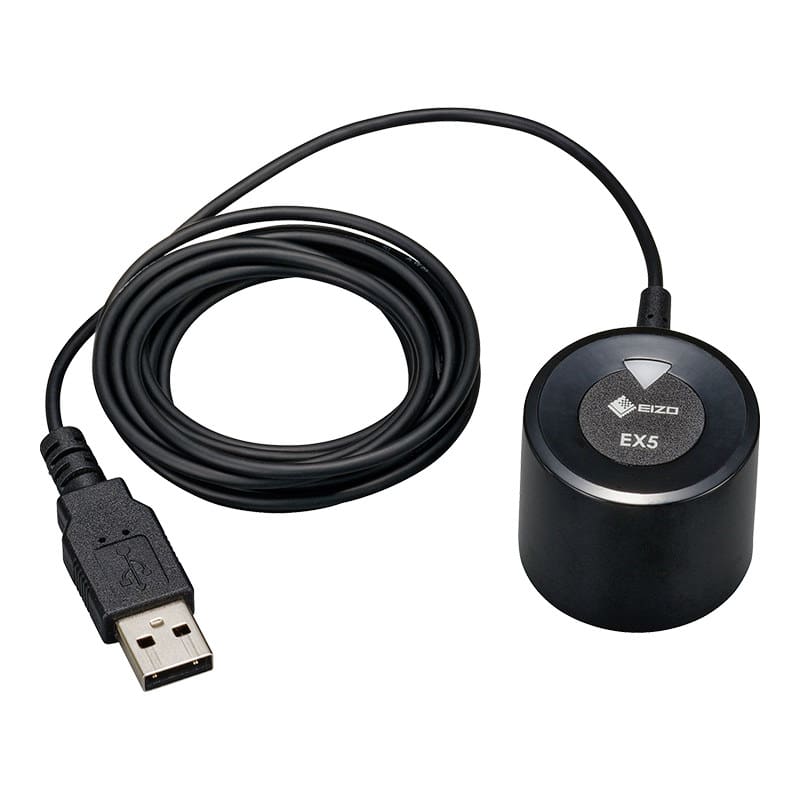
- A CG model such as the CG2700S or CG2400S has the sensor built into the bezel and includes a hood. It suits anyone who wants automatic calibration and a fast start to the day.
- A CS model such as the CS2731 or CS2740 bundle uses an external sensor that you run yourself. The hood is optional.
Our CG vs CS guide compares them side by side. When you look at the whole reproduction system, the monitor is among the more affordable parts, yet it protects every sheet of media you print.
Can I just calibrate the monitor I already have?
Yes. Calibrating and profiling the monitor you already own is much better than leaving it uncalibrated, but it is not the same as an Eizo ColorEdge. A Calibrite calibrator measures your screen and builds a profile, and the correction is applied through the computer’s video card. What you see on screen is changed and brought in line with the calibration target, so colors are far more predictable. It is just not as accurate or as clean as hardware calibration, which writes the correction into the monitor’s own memory (its look-up table) and generally keeps tones smoother and color steadier. That is how Eizo ColorEdge monitors work. A calibrator improves the consistency and quality of what a monitor shows, but it can only do so much: if the monitor itself, such as a laptop screen, is lower quality, there is a limit to what calibration can fix. A Calibrite will not turn an average monitor into an Eizo ColorEdge.
Here is our honest ranking: no calibration, then a Calibrite on your existing monitor, then Eizo hardware calibration (a CG with the sensor built in, or a CS with an external Eizo sensor). DTG sells the Calibrite Display Pro HL and the entry-level Display 123; see all Calibrite calibrators. To compare the Eizo route, read our CG vs CS guide. Not sure which fits your screen? Ask DTG.
Questions we hear
Why does my giclee print look darker or flatter than my screen?
Usually the screen is uncalibrated, or brighter and more saturated than the printer can reproduce. Calibrate and profile it, lower the calibration brightness, check your lighting and soft proof with a profile for that paper.
Will my print ever match my screen exactly?
No honest shop can promise a perfect match. A screen emits light and a print reflects it, so they are not the same. A calibrated monitor, a good profile and soft proofing get you as close as physics allows.
Is a budget monitor good enough for reproduction work?
It depends on who buys your prints. If they only want pleasing color, it can be fine. If you reproduce art for people who expect accurate color, spend a bit more on a monitor you can calibrate and profile. It quickly pays for itself in saved time and materials.
Do I need a custom profile?
A generic paper profile is a reasonable start. A custom one for your printer and media is more accurate, which matters when the artist is particular.
Do I need a wide-gamut monitor?
For paintings with saturated color, it helps, because it shows more of what the original contains. Calibration is essential either way.
How often should I recalibrate?
On a regular schedule. For a CS with an external sensor, every two to four weeks is a sensible rhythm. A CG can do it automatically on a schedule you set.
Talk to DTG
Whether you reproduce originals for one artist or for a gallery, DTG is an authorized Eizo reseller in Tampa, FL. Tell us what you print and we will help you choose a monitor, a sensor and a workflow that fit your work. A DTG color specialist follows up personally.
Call us: 813.889.0660 or toll-free 800.681.0024.
You can also contact us online or browse the Eizo ColorEdge monitors we carry.
About the author: The author has been providing color management and printing solutions to the fine art reproduction, digital photography, sign making, proofing and digital textile markets since 1993, and has been writing, training and teaching on the subject for various publications and in many different forums over the years.
Keep reading
- Why doesn’t my print match my screen? (start here)
- Color-accurate monitors for photo printing
- Color-accurate monitors for sign printing
- Color-accurate monitors for brand and commercial printing
- Eizo ColorEdge CG vs CS: which series to buy
- Match your Eizo monitor to your printer: soft proofing


